Can you make a font on an iPad?
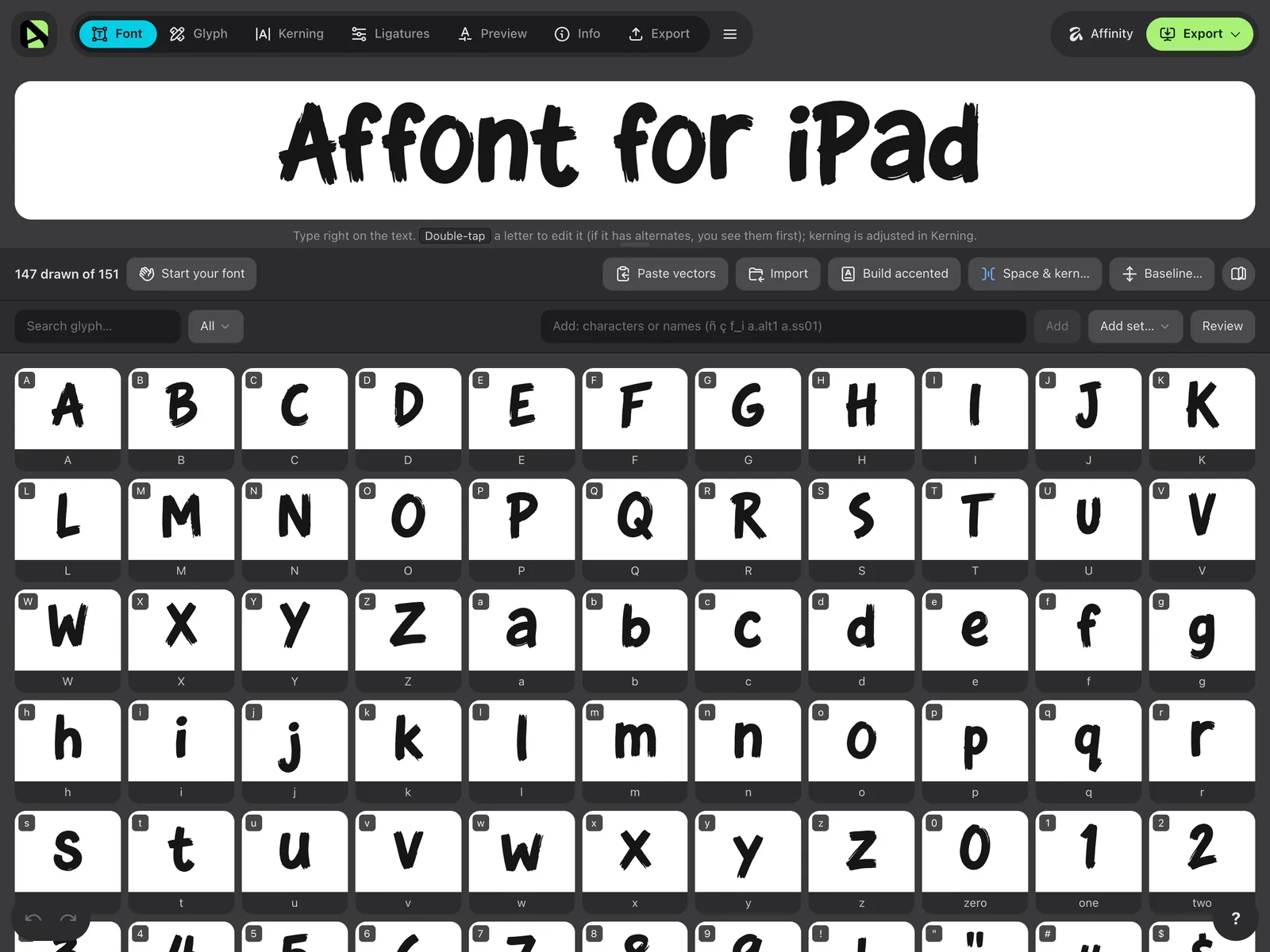
Yes. iPadOS can install your own fonts and use them in Pages, Keynote, Affinity and other apps, but it has no built-in way to create a font file. That’s what Affont for iPad does: it turns letters drawn on paper, in a drawing app or on the screen into a real OTF, TTF, WOFF or WOFF2 font, and installs it on the iPad.
Everything happens on the iPad. You don’t need a computer, an account or Affinity, although if you draw in Affinity for iPad you can bring your letters in from there too.
What you need
- An iPad with iPadOS 18 or later. Any model works.
- Affont for iPad, from the App Store. It’s a free download and unlocks with a one-time payment of $24, with no subscription. The same license activates Affont for Mac and Windows: 3 devices in total, the iPad included.
- Optional: an Apple Pencil. Everything works with your finger; the Pencil adds pressure to the brushes.
- If you write on paper: white paper and a black marker or brush pen. Thick, dark strokes trace much better than a thin ballpoint.
Two ways to bring in your handwriting
- A letter sheet. Write the whole alphabet on paper (or in a drawing app such as Procreate) and bring it in as one image. Affont separates every letter, traces it with curves and lets you say which character each one is in one go. It’s the fastest way, and your letters keep the real look of your pen.
- Straight on the iPad. Write each letter in its own space in Affont, with the brush and the Apple Pencil or your finger. It takes a bit longer, but you see the result in the font as you go.
You can mix both: bring in a sheet and then redo the letters you don’t like on the screen.
Write your letters
- Write in rows, like a text, and leave some air between letters: two letters that touch come out as one shape.
- Include everything you want in the font: A–Z, a–z, 0–9, punctuation and the accented letters of your language. Around 90 characters make a usable font.
- Keep a similar size and the same pen for the whole sheet. Affont gives all the letters of a sheet the same scale, so a letter written bigger will be bigger in the font.
- Write two or three versions of the letters you use most (a, e, n, o, s, t). They’ll become alternates that make the font look truly handwritten (see step 5).
- For joined script, write each letter separately anyway, and make the stroke that leaves one letter and the one that enters the next start and end at the same height.
Photograph or export the sheet
On paper: photograph the page with the iPad or your phone, straight from above and with even light, without shadows across it. Then, in Photos, tap Share ▸ Save to Files: Affont opens the sheet from Files. A scan works even better.
In a drawing app: hide the background layer or color and export the image as PNG. With a transparent background Affont separates the letters perfectly. Save it to Files.
Open it as a letter sheet
- In Affont, tap New font and give it a name.
- On the Font screen, tap Import ▸ Letter sheet… and choose your image.
- Affont separates what’s written from the paper and puts each shape in a blue box, with the trace in black over your writing. Tap a letter to see it up close.
If something doesn’t look right, adjust it before continuing:
- Stroke weight: raise it if a letter breaks into pieces; lower it if two letters stick together.
- Ignore blots: lower it if a dot or an accent goes missing (it hides specks of dust and paper grain).
- Smoothing: raise it if the edges look rough; lower it if a small hole in a letter disappears.
Under Letters as, Vectors gives you clean curves you can edit node by node. Image keeps each letter exactly as you wrote it, with the texture and color of the ink, as a color font. Then tap Separate letters.
Tell Affont which letter is which
The New characters window shows every shape in the order you wrote them. Dots and accents are already joined to their letter.
- Type each shape’s character, or all of them at once in All in order: for example ABCDEFGHIJKLMNOPQRSTUVWXYZ.
- If a letter arrived in pieces, use Join with the previous one.
- If you type the same letter on two shapes, the second one goes in as an alternate.
Tap Add to font. Each row sits on its baseline and keeps the same scale. Do the same with the sheet of lowercase letters, numbers and signs.
Or write straight on the iPad
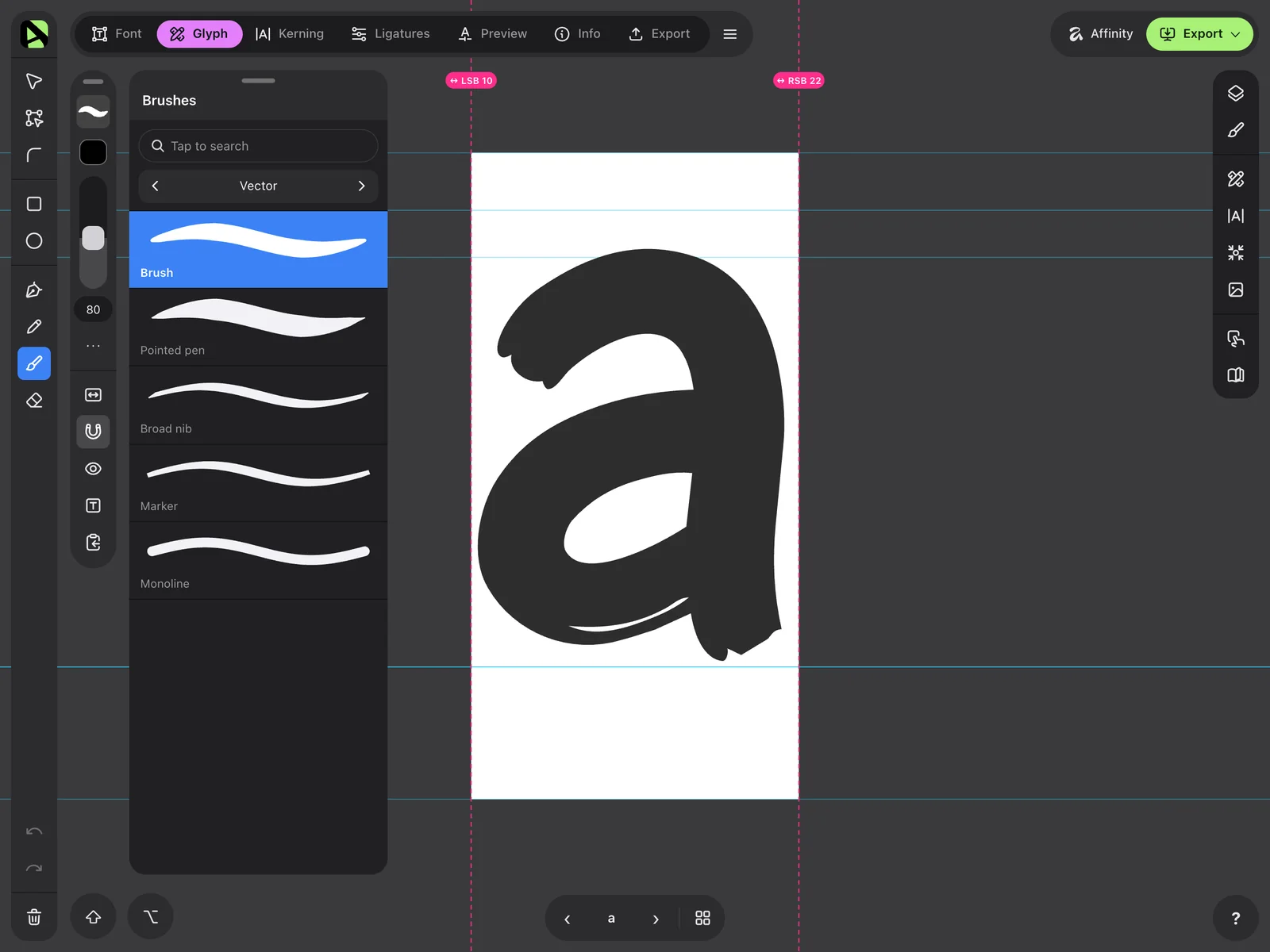
When you start a font, choose Draw in Affont, pick the character set (Latin for your language, for example) and tap Start drawing: the first letter opens with the Brush, with guides for the baseline, x-height and cap height.
- Vector brushes follow the pressure of the Apple Pencil. The Textures group has brushes such as Brush pen, Marker, Ink, Chalk and Watercolor, which keep the paint’s texture (the letter becomes a color letter).
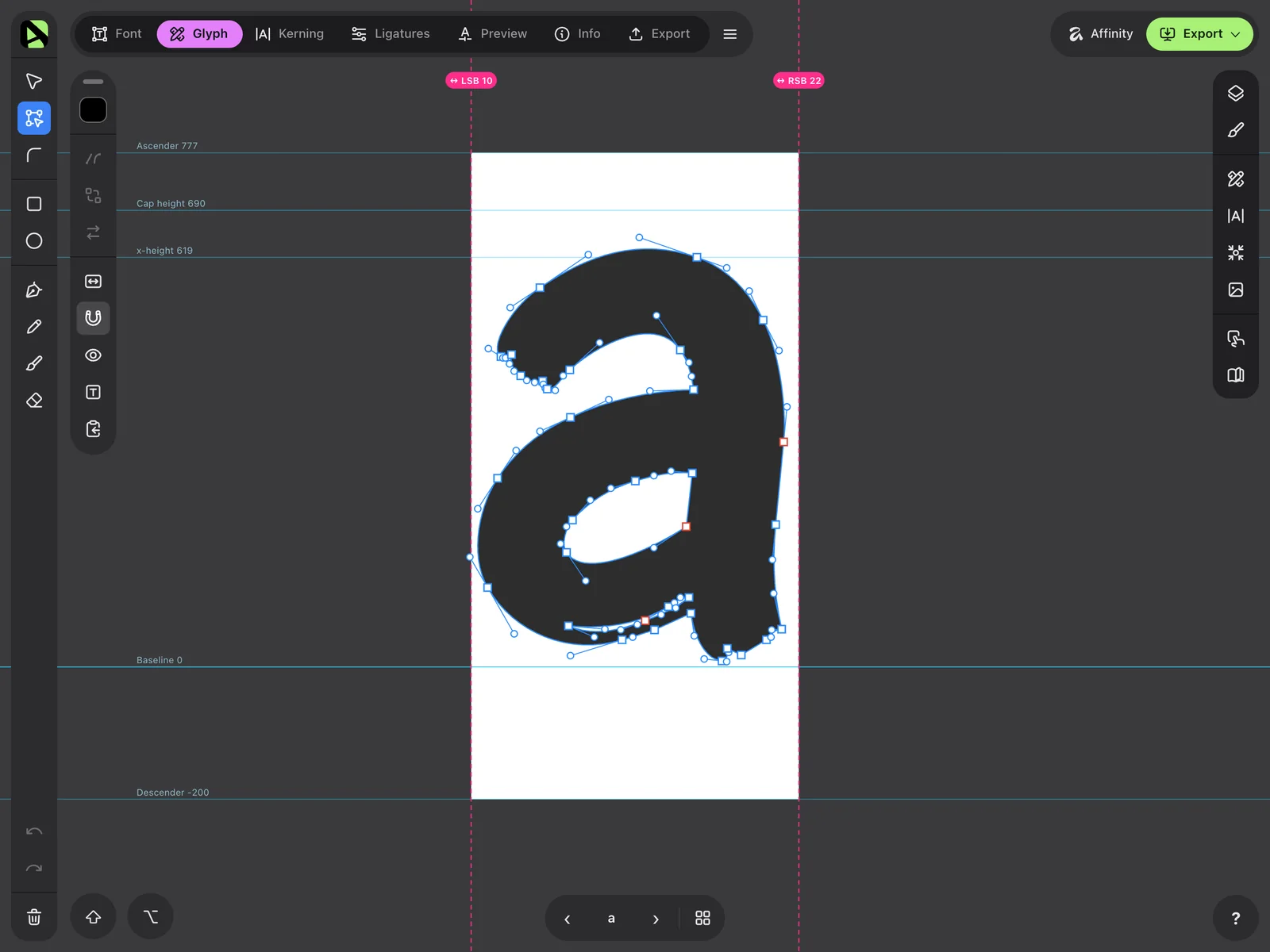
- What you draw stays editable: move nodes and handles with your finger or the Pencil, or unite and subtract shapes.
- Want to follow a letter you wrote on paper? Load a Tracing image behind the letter, from Photos, the Camera or Files, and go over it.
Make it look handwritten
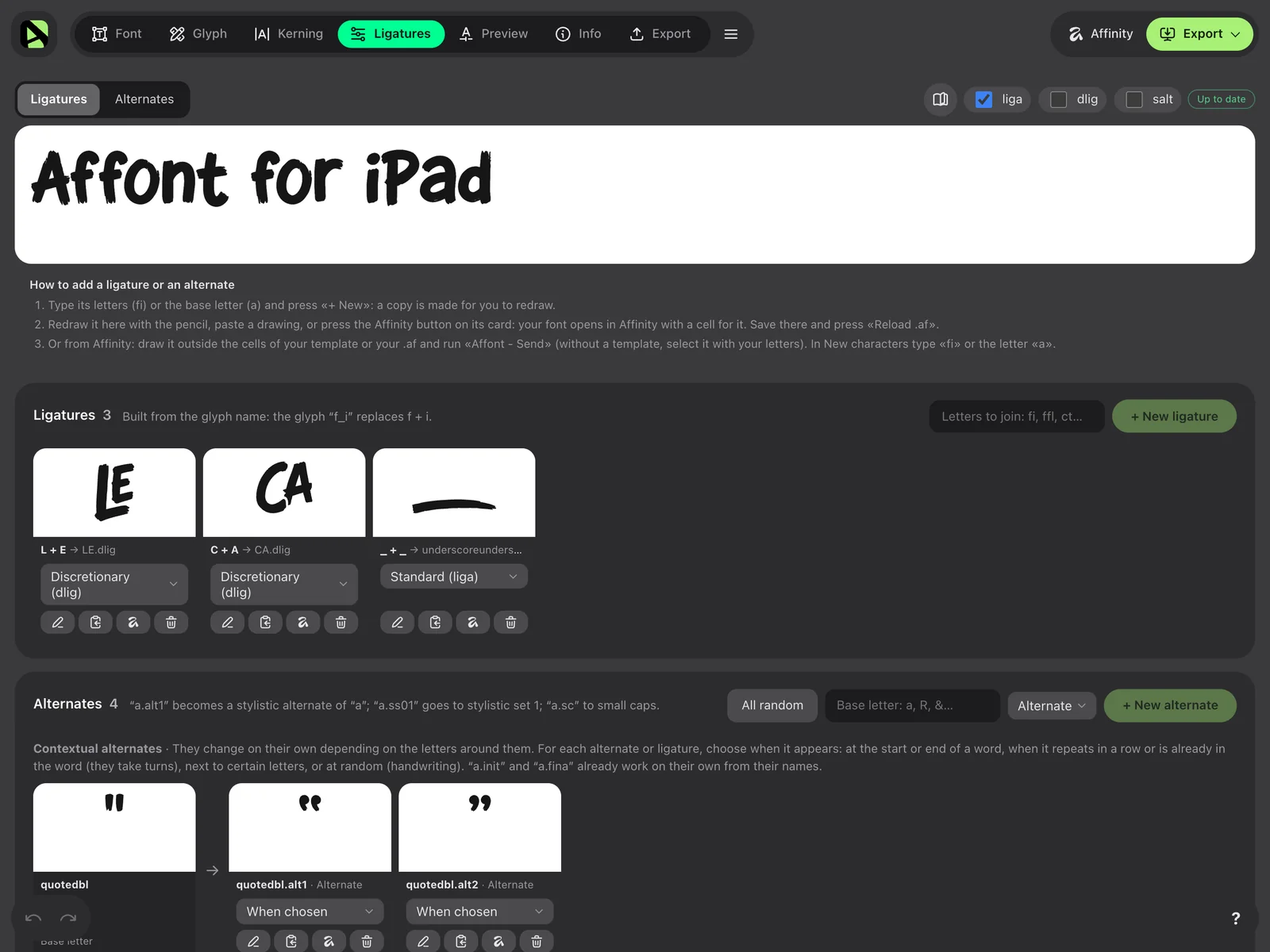
What gives a handwriting font away is two identical letters side by side. Affont fixes that with alternates:
- The extra versions of each letter are named a.alt1, a.alt2… (the ones from the sheet are already named that way).
- In Ligatures and alternates, All random makes them take turns on their own across the whole text, so two neighbours never come out the same. With When repeated in a row, only doubles like “ll” or “ee” change.
- For letters that join, leave the side bearings at 0 or slightly negative so the strokes touch, and draw a.init and a.fina if you want a different shape at the start or end of a word.
Spacing and kerning
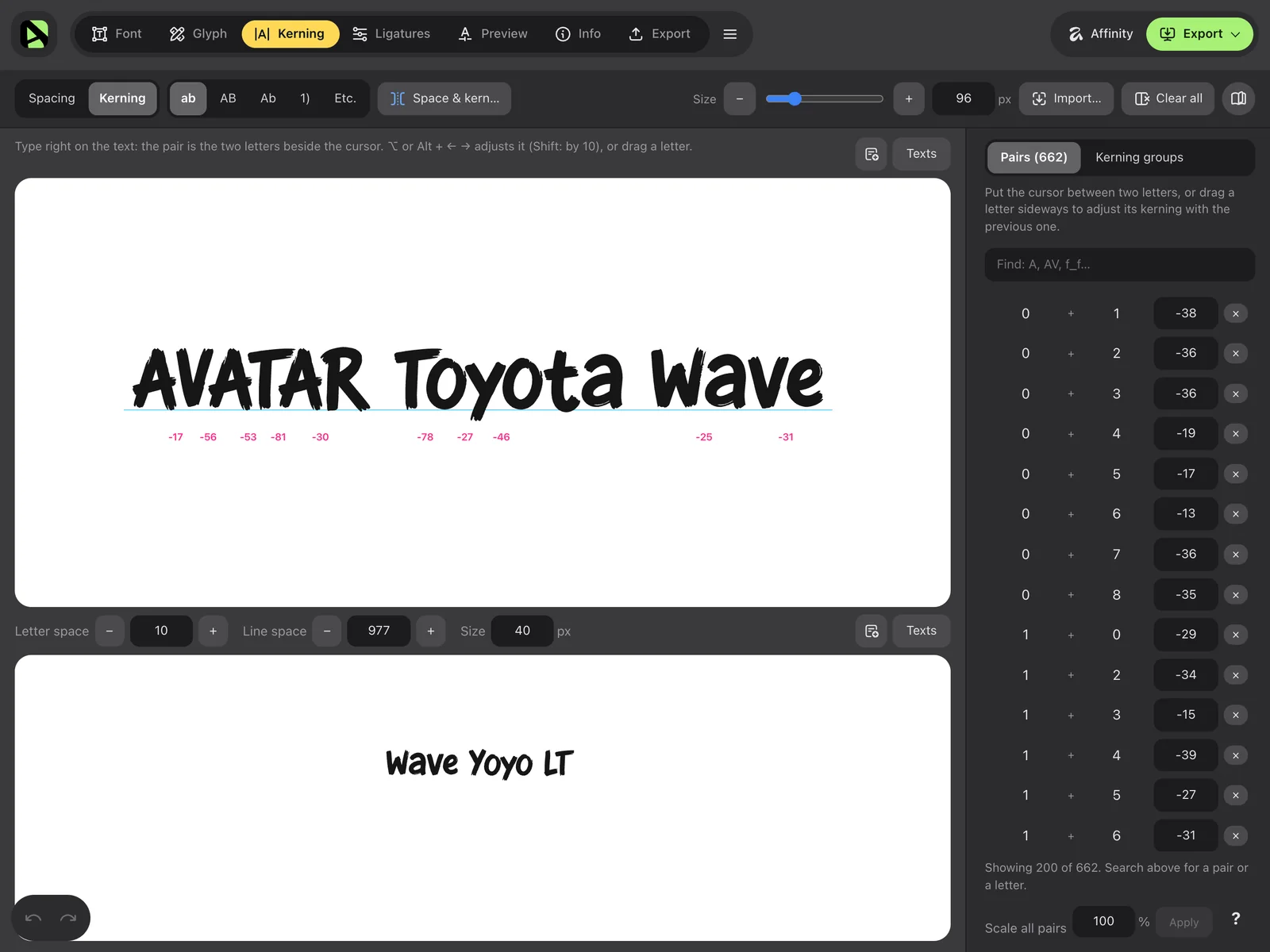
Spacing is what turns a set of letters into a font that reads well. Use the automatic spacing as a starting point, then go to Kerning: write a word with the pair that looks off and drag one letter toward the other while you read. Groups and automatic adjustments are there too, so you don’t have to fix every pair by hand.
Export and install it on your iPad
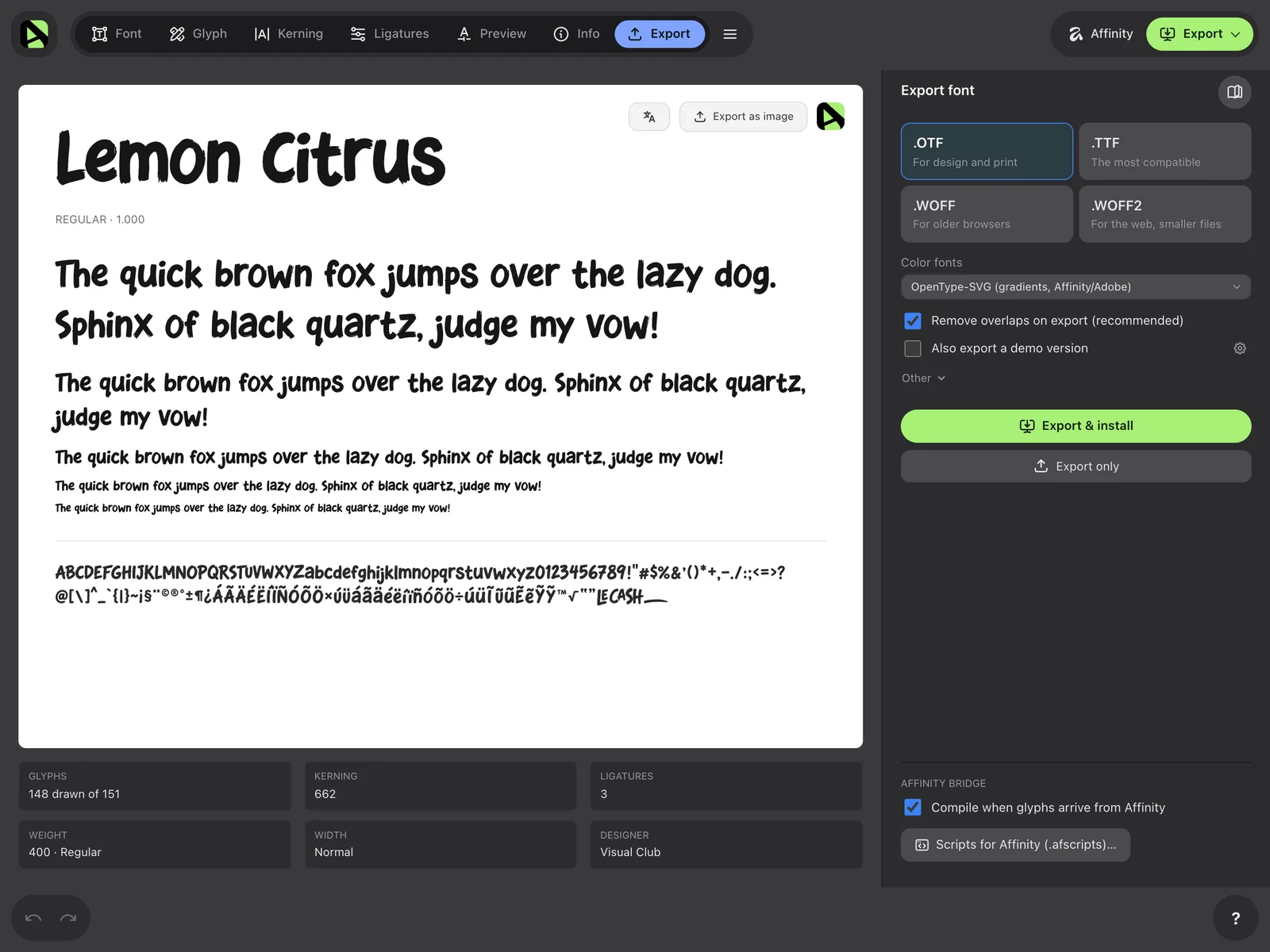
- Go to Export and choose the formats: OTF or TTF for apps, WOFF2 for websites.
- Tap Export and install and then Continue. Safari opens the font’s installation profile, made on your own iPad: tap Allow.
- Open Settings ▸ General ▸ VPN & Device Management, choose your font and tap Install. The “Unsigned” label is normal.
From then on your handwriting shows up in the font menu of Pages, Keynote, Affinity and other apps (if one was open, reopen it). The files stay in Files ▸ On My iPad ▸ Affont: from there you can send them by AirDrop to a Mac or share them.
Common problems
- Two letters came out as one shape: they touch in the drawing. Separate them on the paper or in the image and open the sheet again.
- A letter came in pieces: raise Stroke weight, or join it with Join with the previous one.
- The dot of the i or an accent is missing: lower Ignore blots.
- Rough or wobbly edges: raise Smoothing, or write with a thicker pen and better light.
- The font doesn’t appear in an app: check it’s installed in Settings ▸ General ▸ VPN & Device Management and reopen the app.