Affont 1.2.3: letter sheets, your font in Affinity and back, and alternates and ligatures just by typing them
 Emmanuel from AffontTeamTeam·
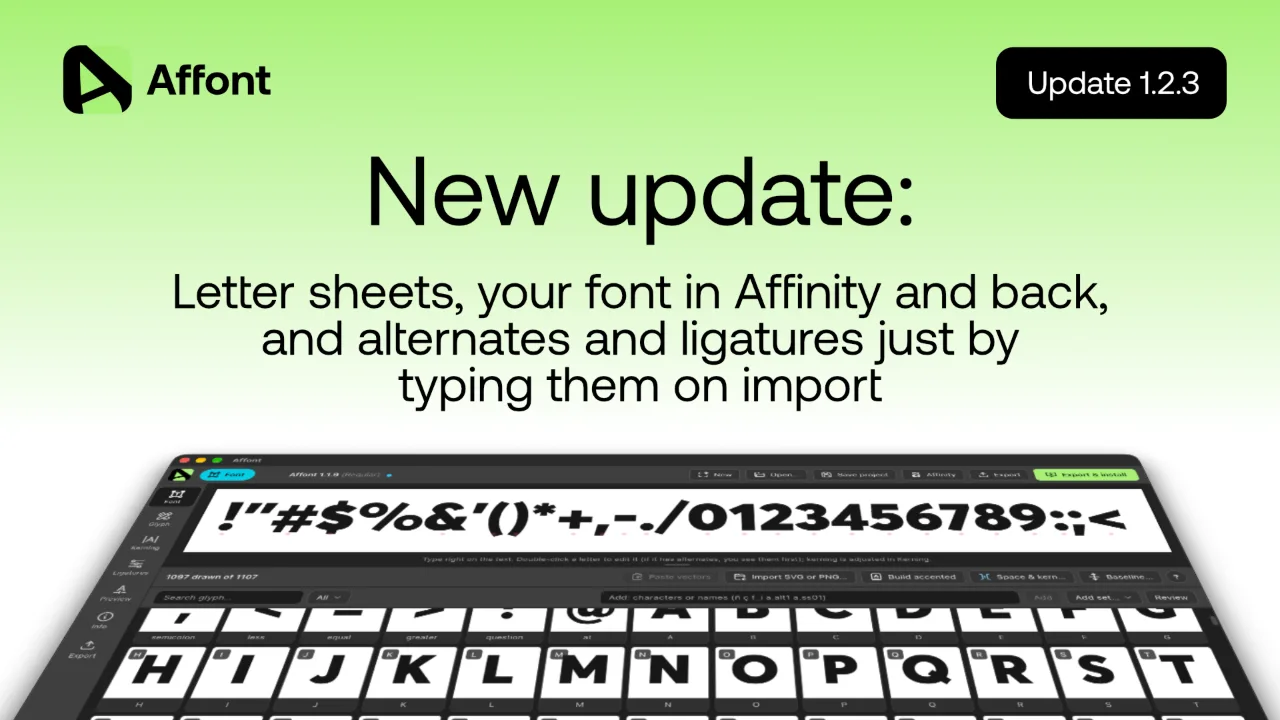
Three updates in one post, most of them asked for by designers who use Affont every day. What’s new:
Letter sheet (1.2.2)
Draw all your letters in one image, in a drawing app or on paper, and bring them in all at once.
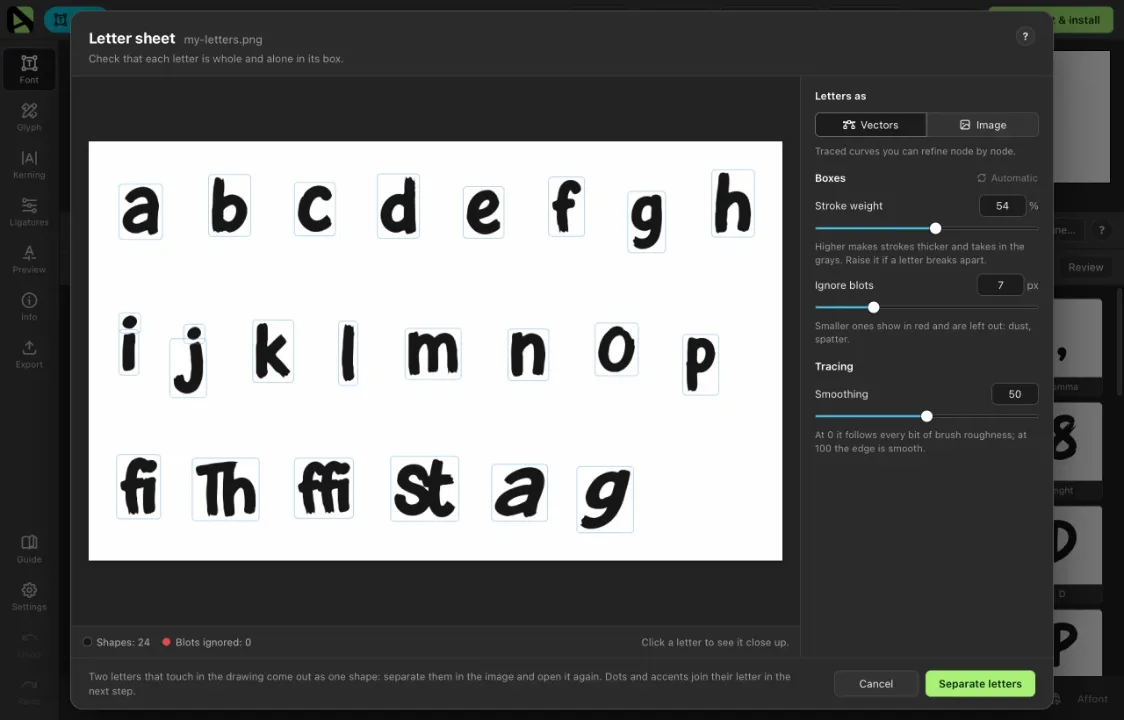
- Click Import ▸ Letter sheet… (or drag a PNG, JPG or WebP onto the window). Affont separates the drawing from the background and puts each letter in its own box.
- Letters as ▸ Vectors traces each letter with curves: small counters stay, there are no lumps, and corners go where the stroke turns. Letters as ▸ Image keeps it as a bitmap letter, with the brush texture and its colors.
- You see the result live while you adjust Stroke weight (with Image, Cut-out edge), Ignore blots for dust and spatter, and Smoothing. Click a letter to see it close up, with its outline and nodes.
- Separate letters takes them to New characters, where you type which letter each one is. Dots and accents already go with their letter.
Alternates and ligatures, just by typing them (1.2.3)
In New characters (after a letter sheet, or a send from Affinity without the template) you no longer need to know glyph names:
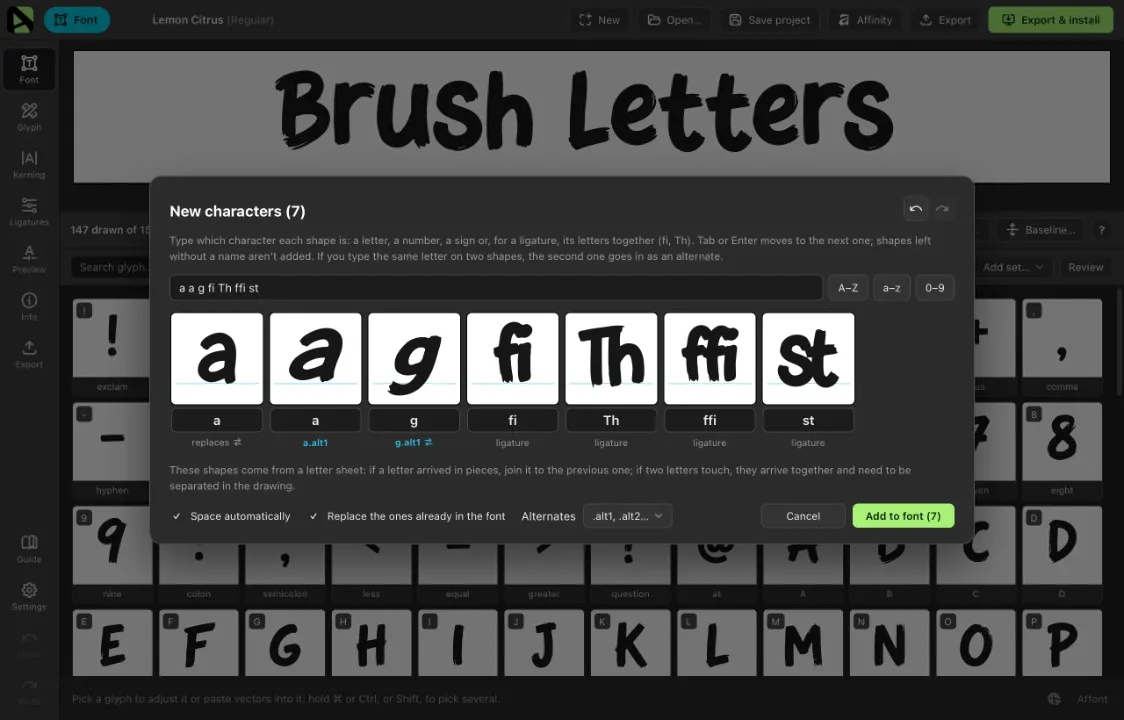
- Type the same letter on two shapes and the second one goes in as an alternate: a.alt1, a.alt2… Under Alternates you can name them as stylistic sets instead (a.ss01, a.ss02…): the second version of each letter goes into set 1, the third into set 2.
- For a ligature, type its letters together: “fi”, “Th”, “ffi”. It says ligature under the shape. Before, typing “fi” made a glyph that never showed up when typing.
- When your font already has that letter, it says replaces ⇄ under the shape. Click it to add that shape as an alternate and keep the one in your font. Replace the ones already in the font does it for all of them at once, so you can add a second A–Z as alternates.
- Undo and Redo inside the window (⌘Z / Ctrl+Z), and a trash button on each shape to remove the ones you don’t need.
Your font in Affinity, and back (1.2.2)
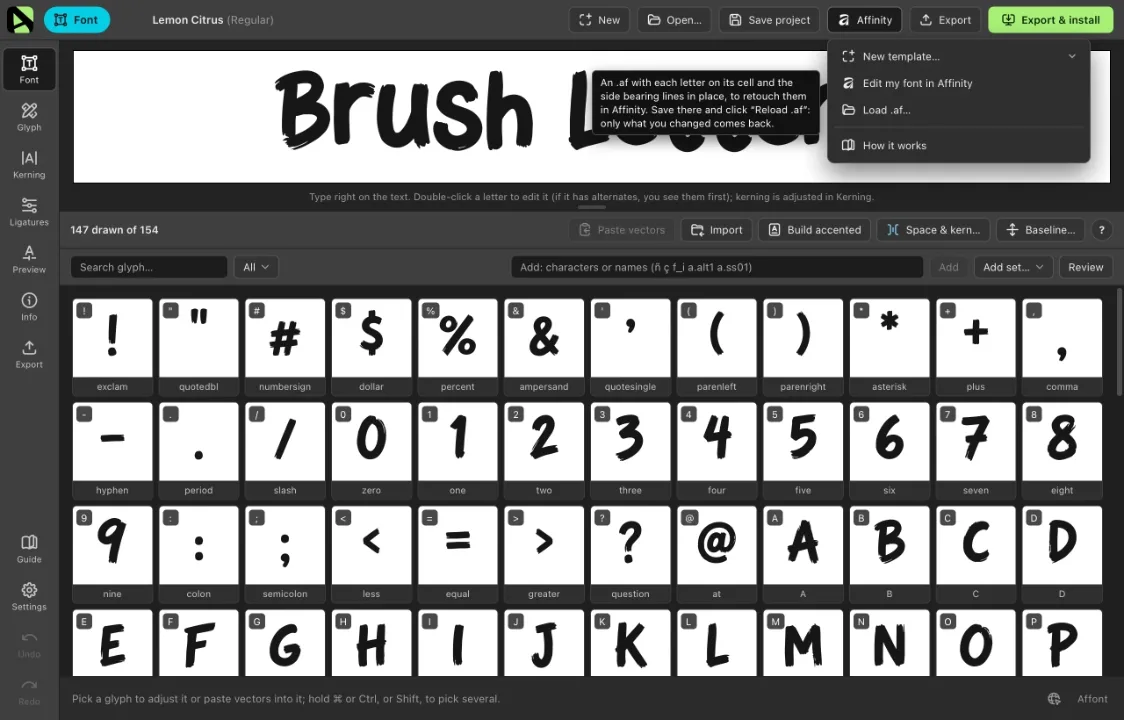
- Affinity ▸ Edit my font in Affinity builds a document with the Affont template: one cell per letter with your font’s metrics, each letter drawn on its cell and the margin lines in place. It’s saved in Documents/Affont and opens in Affinity.
- Refine the nodes, move the margins or draw the missing letters in their empty cells, save, and click Reload .af: only the letters you touched in Affinity change.
- Color letters keep their colors; painted (bitmap) letters don’t go yet.
- The Affinity menu is shorter: New template… unfolds right there with the character set and the style, and each option tells you what it does when you hover over it. Import is a short menu too: SVG image, PNG image and Letter sheet.
My texts (1.2.3)
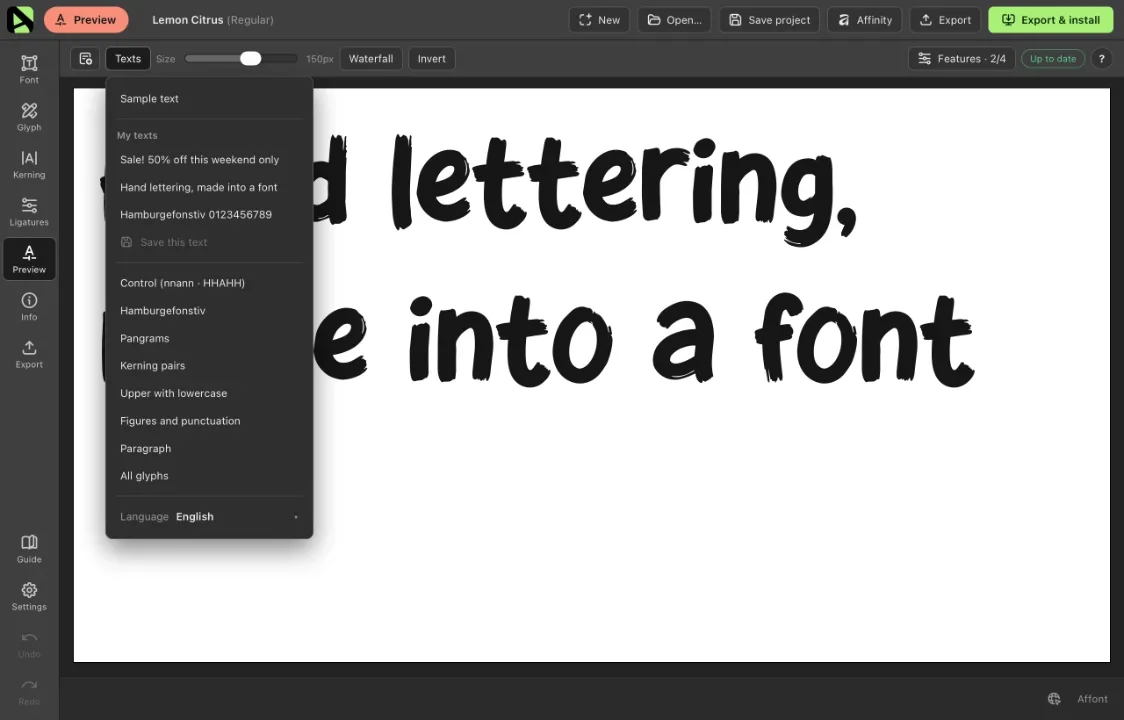
Every designer has their favorite test text. In the Texts menu, Save this text keeps the one you typed under My texts, at the top of the same menu. They’re there on every screen with a test text and in all your projects; the cross on each one removes it.
Baselines and number fields (1.2.1)
- When you send several shapes without the template, quotes, dashes and other floating signs no longer shift their row’s baseline, and Ç, Ş or Ę sit on the letter, not on the mark.
- To set a row’s baseline yourself, draw a horizontal line along it, longer than the letters, and select it with them before Send: Affont takes it as that row’s baseline and doesn’t add it as a character.
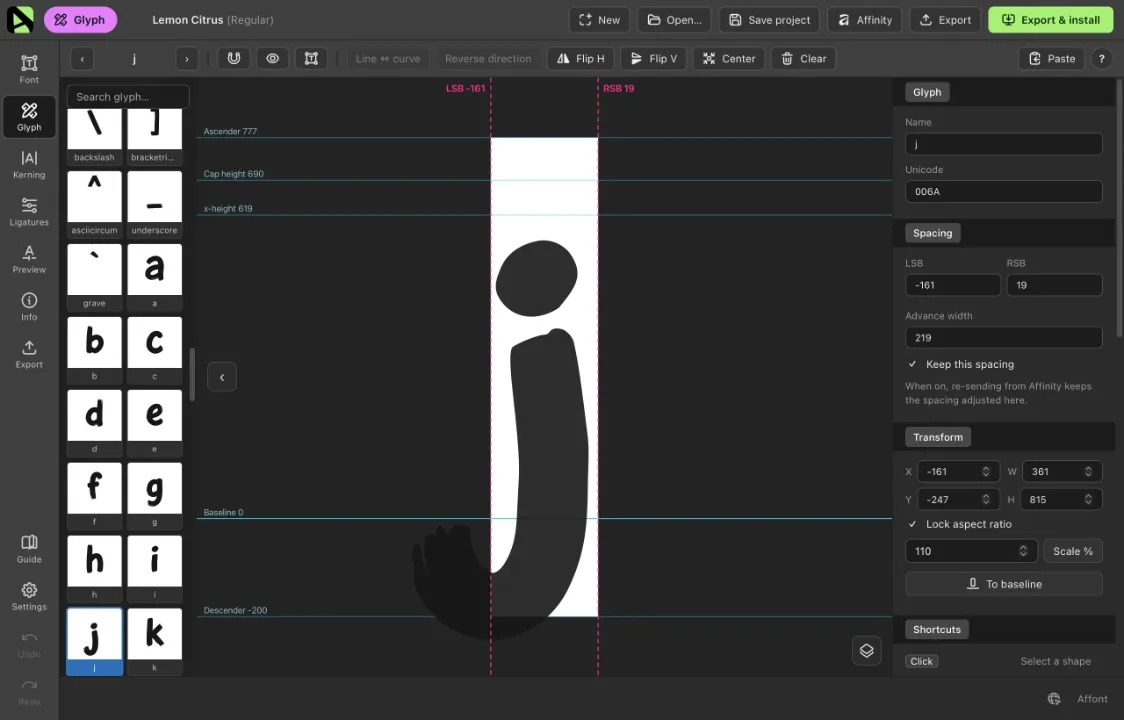
- In Glyph, LSB and RSB accept a minus sign typed first, so you can type −20 right away. Like the advance width and Info’s metrics, you can also drag them sideways to change the value (with Shift, in steps of 10).
No need to import the Affinity scripts again for these versions.
Thanks to the designers who asked for all of this: the letter sheet, editing your font back in Affinity, negative side bearings, quick alternates and saved texts. Keep them coming!