Affont 1.1.6: type on the text, smart tools up front, ligatures in Kerning and a welcome guide for Affinity
 Emmanuel from AffontTeamTeam·
A big one, shaped by the feedback of type designers who use Affont every day. What’s new:
Type right on the text
In Font, Kerning, Spacing, Ligatures and Preview you click on the large text and type right there, with a cursor, selection and paste. Double-click a letter to try its alternates in that spot.
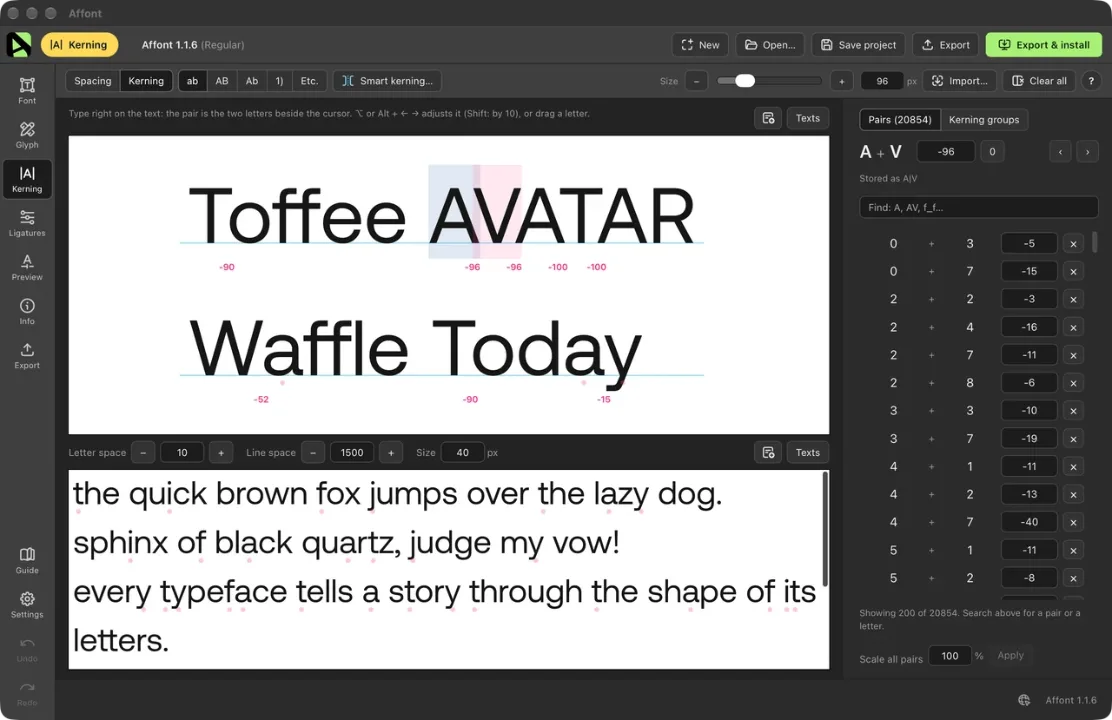
Smart spacing and smart kerning, right where you need them
- Smart spacing… and Smart kerning… now sit next to ab · AB · Ab · 1), always with their name.
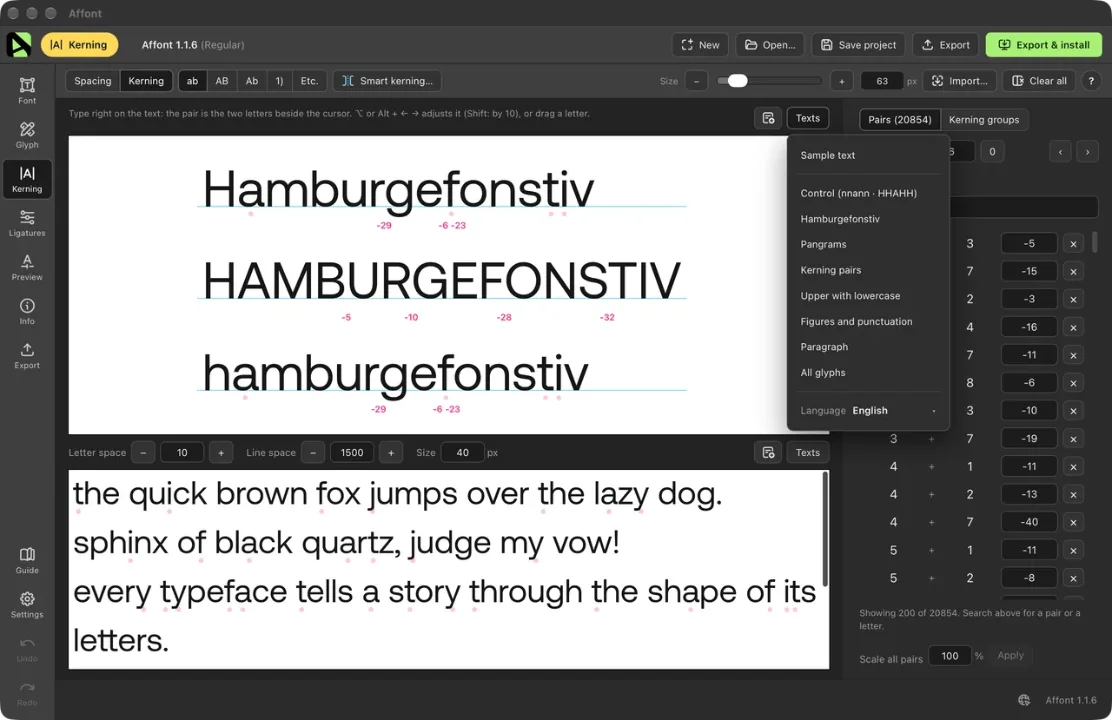
- A new Texts menu next to every text: your usual sample text, control strings (nnann · HHAHH), Hamburgefonstiv, pangrams, kerning pairs, figures, a paragraph or all your glyphs, in the language you choose. Also in Preview.
Ligatures and alternates in Kerning and Spacing
- Type “ff” and the ligature shows up, like in any app. Any glyph can be typed by its name with a slash: /a.alt1, /f_f, /T.ss01.
- Kern and space them like any letter. The pair list and the spacing table find them by name (“f_f”, “a.alt1”).
- Smart spacing and smart kerning include them too.
Handwriting fonts
A new Random rule for alternates (and All random in Ligatures): each letter takes turns between its forms, so two neighbours never look the same. There’s a new Guide section about handwriting and script fonts.
Glyph editor
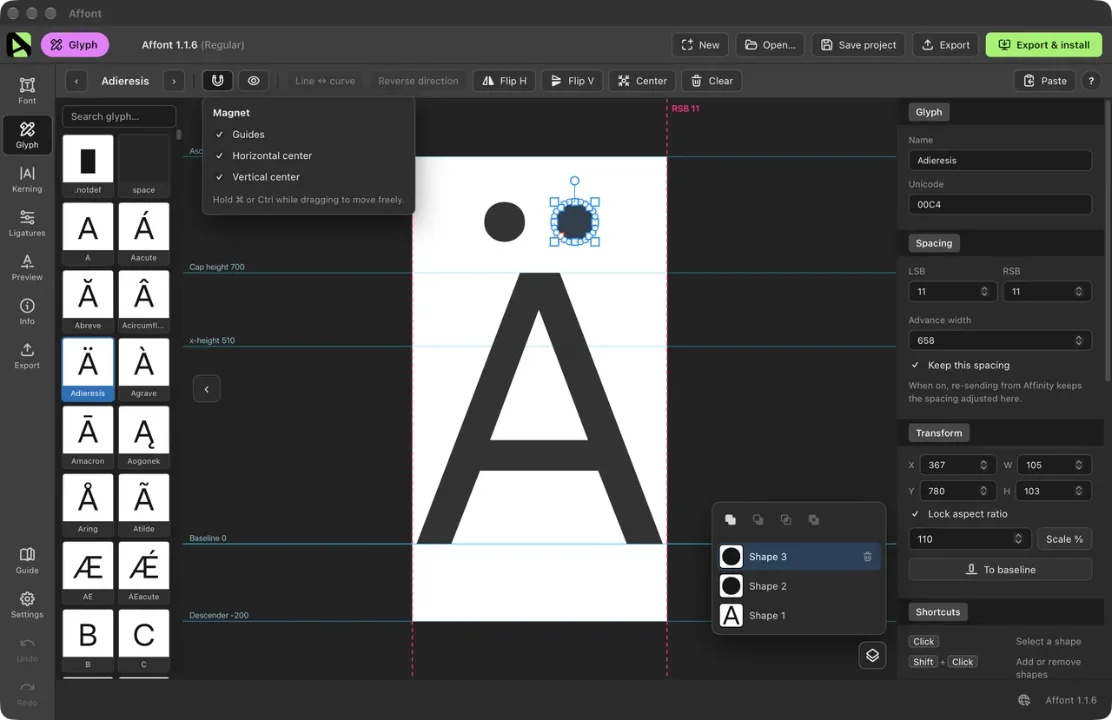
- A Layers panel with booleans: Unite, Subtract, Intersect, Exclude. Copy and paste shapes between letters.
- A magnet that snaps what you move to the guides and to the horizontal or vertical center.
- Shorter toolbar: Paste (vectors, inside and the size) is one menu; fill, outlines and LSB/RSB handles live in the eye menu; ⌘/Ctrl+0 centers the view.
- Dragging the LSB keeps the letter still. Clear empties a letter.
Several letters at once
In Font, select several letters (⌘/Ctrl + click, Shift + click) and use Baseline… to sit them on the baseline together, even ones with an irregular bottom.
Batches from Affinity
- Every send from the same document comes out at the same size.
- All-caps fonts named as lowercase no longer come out smaller.
- “All in order” fills only the shapes without a name and understands the comma itself. The vertical bar | is accepted.
Vietnamese and names in any script
- The đồng sign (₫), and in Build accented the tone mark sits beside the circumflex (ấ ầ ẩ), the way Vietnamese is written.
- Export no longer fails with font names in Vietnamese, Japanese or Thai.
A welcome guide for Affinity
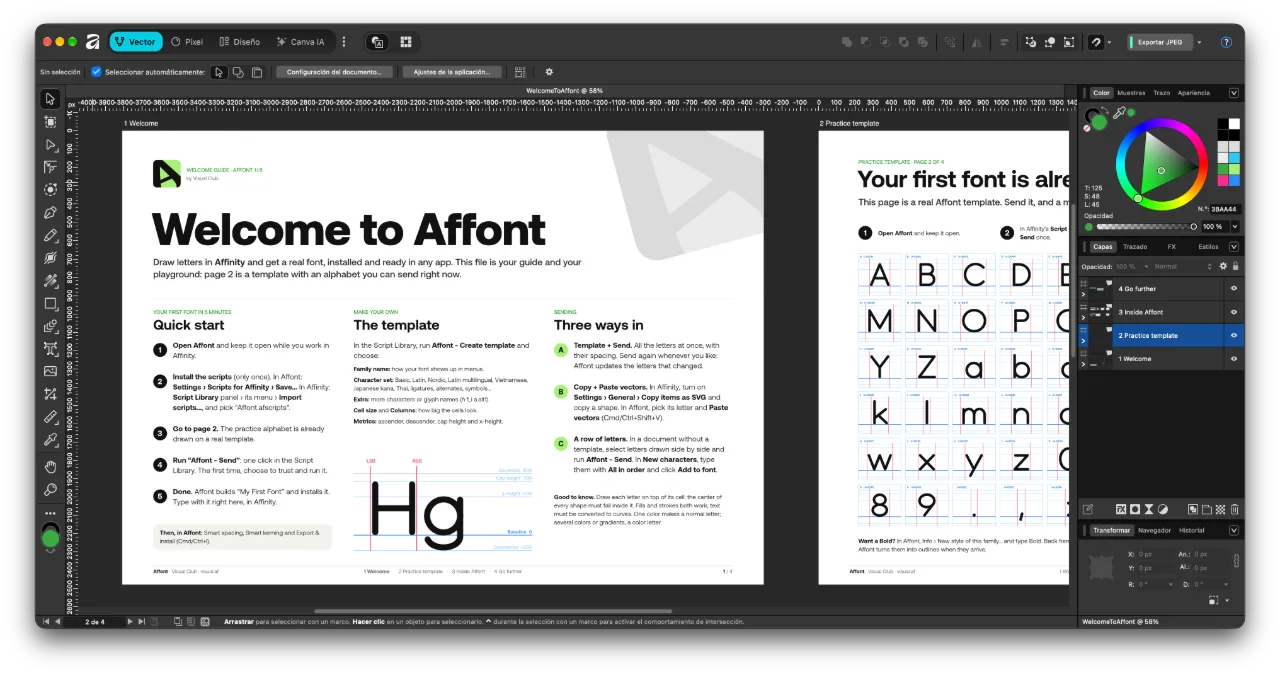
WelcomeToAffont.af walks you through everything, step by step, with a practice font ready to send. Open it from the last step of the welcome or from the Guide.
Also new
- In Preview, the OpenType features are in one Features menu, with All and None.
- On Mac, installed fonts show up in every app right away.
After updating, import the Affinity scripts again only if you want the đồng sign in the template’s Vietnamese set:
- In Affont: Settings ▸ Scripts for Affinity (.afscripts)…
- In Affinity: Script Library ▸ ▾ menu ▸ Import scripts… (delete the old “Affont” category first).
Thanks to ikiiko, JOL and Ronny Studio for the detailed feedback behind this version.

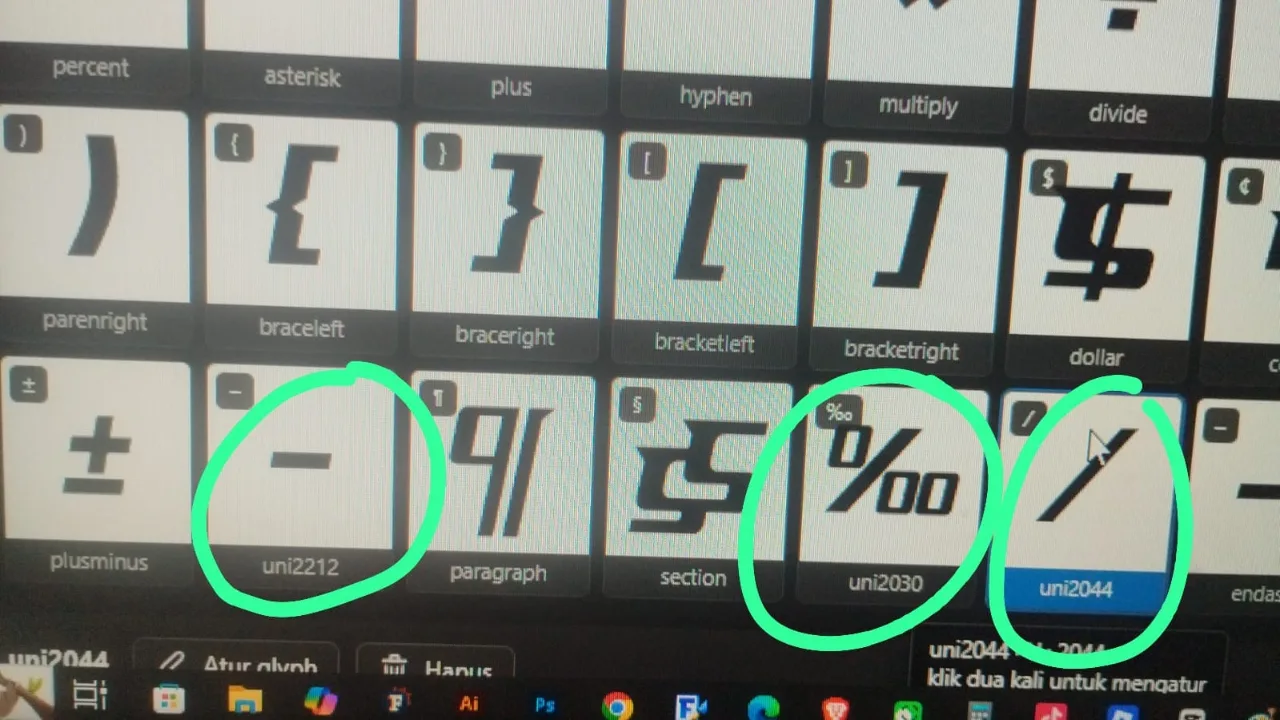 Hi Emmanuel, I’d like to ask about something I’ve noticed: in my "perthousand" data, only "uni2030," "uni2044," and "uni2022" appear. Is this a bug, or is it an error on my part?